How to Label Areas and Make an Area Table in AutoCAD (3 Ways)
How to Label Areas and Make an Area Table in AutoCAD (3 Ways)
AUTOCAD GUIDE
How to label areas and make an area table in AutoCAD
Rooms on a floor plan, plots on a survey, zones on an irrigation layout — sooner or later every drawing needs its areas written on it, and a table that sums them up. AutoCAD measures areas happily; getting them onto the drawing, numbered and totalled, is where the time goes.
Here are the three ways to do it, from built-in commands to one click.
Method 1 — the built-in commands (one shape at a time)
AREA, LIST, the Properties palette and Quick Measure all report an object’s area — on the command line or in a palette, one object at a time, in raw drawing units. Fine for checking a single value; useless for labelling thirty rooms. Nothing lands in the drawing itself.
The step up is a FIELD: insert text, choose Field → Object → Area, pick the shape, set the format. The label even updates when the shape changes. But every field is created, placed and formatted by hand — shape by shape — and you still have no numbering and no total.
Method 2 — free LISP routines
The CAD forums are full of area-labelling AutoLISP routines, and some are excellent — load one with APPLOAD and it will stamp areas on selected shapes. Limits vary: many label in drawing units only, few number the shapes, and table output with a checked total is rare. If you like the free route, our free AutoCAD LISP collection has 30+ tested, documented routines.
Method 3 — one selection with Area Measure
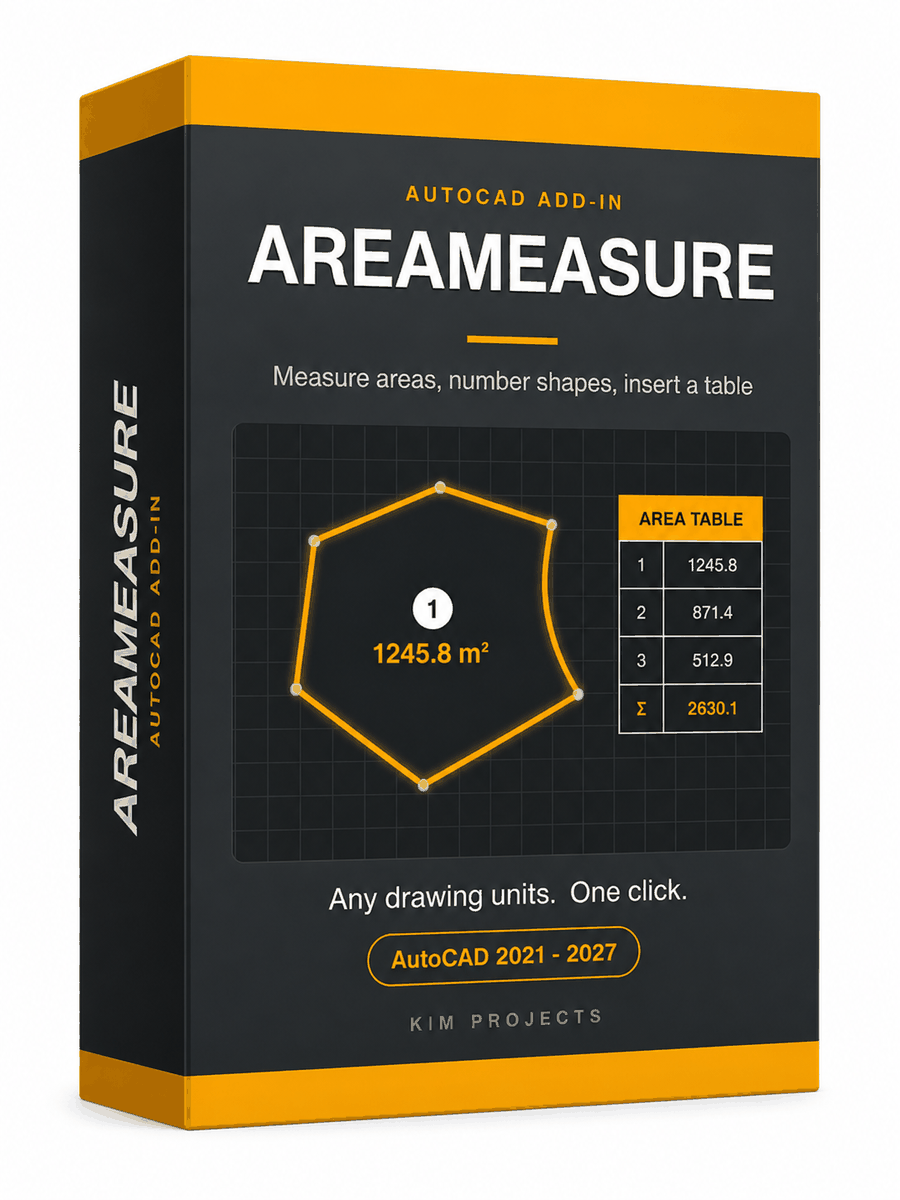
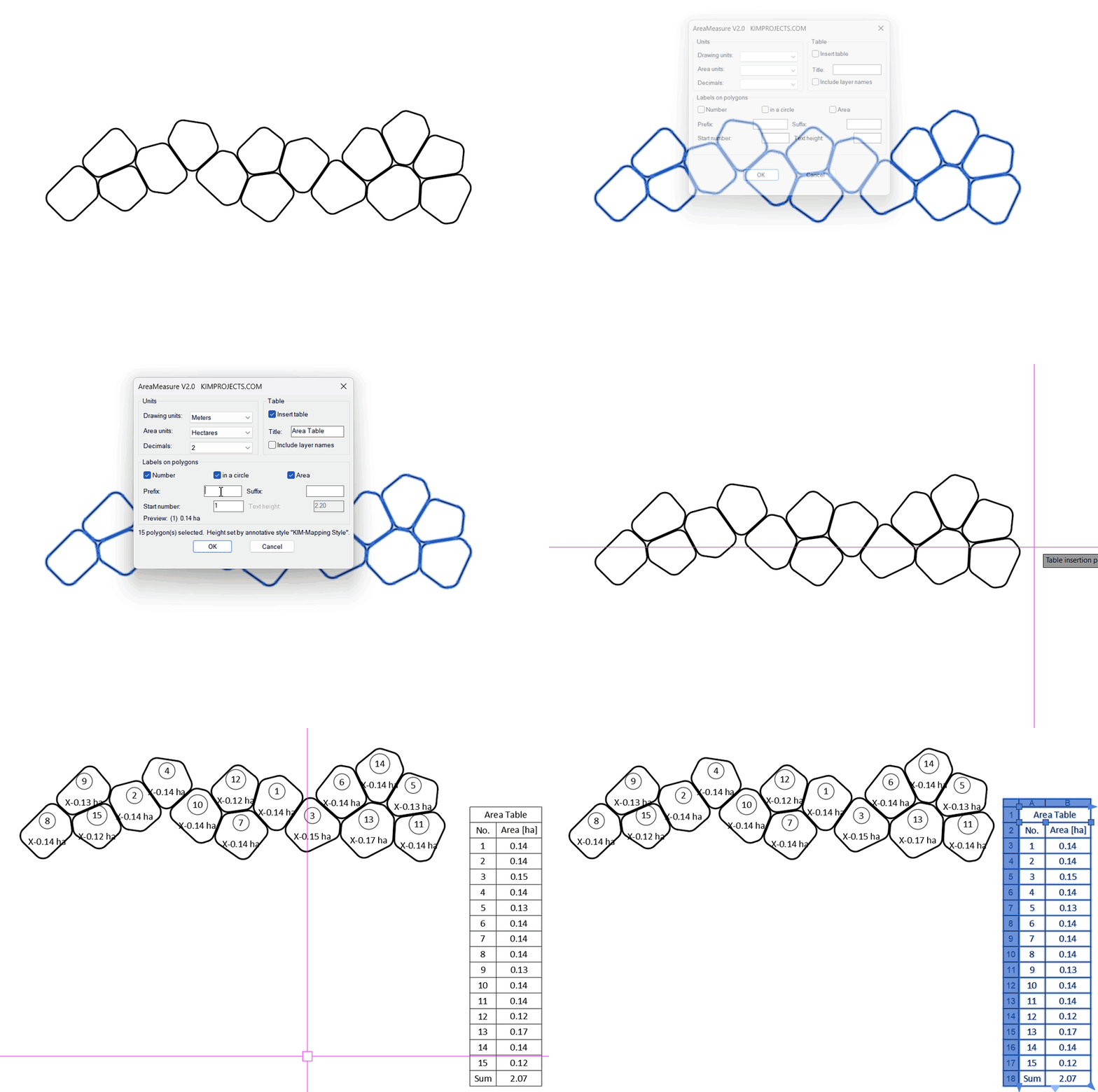
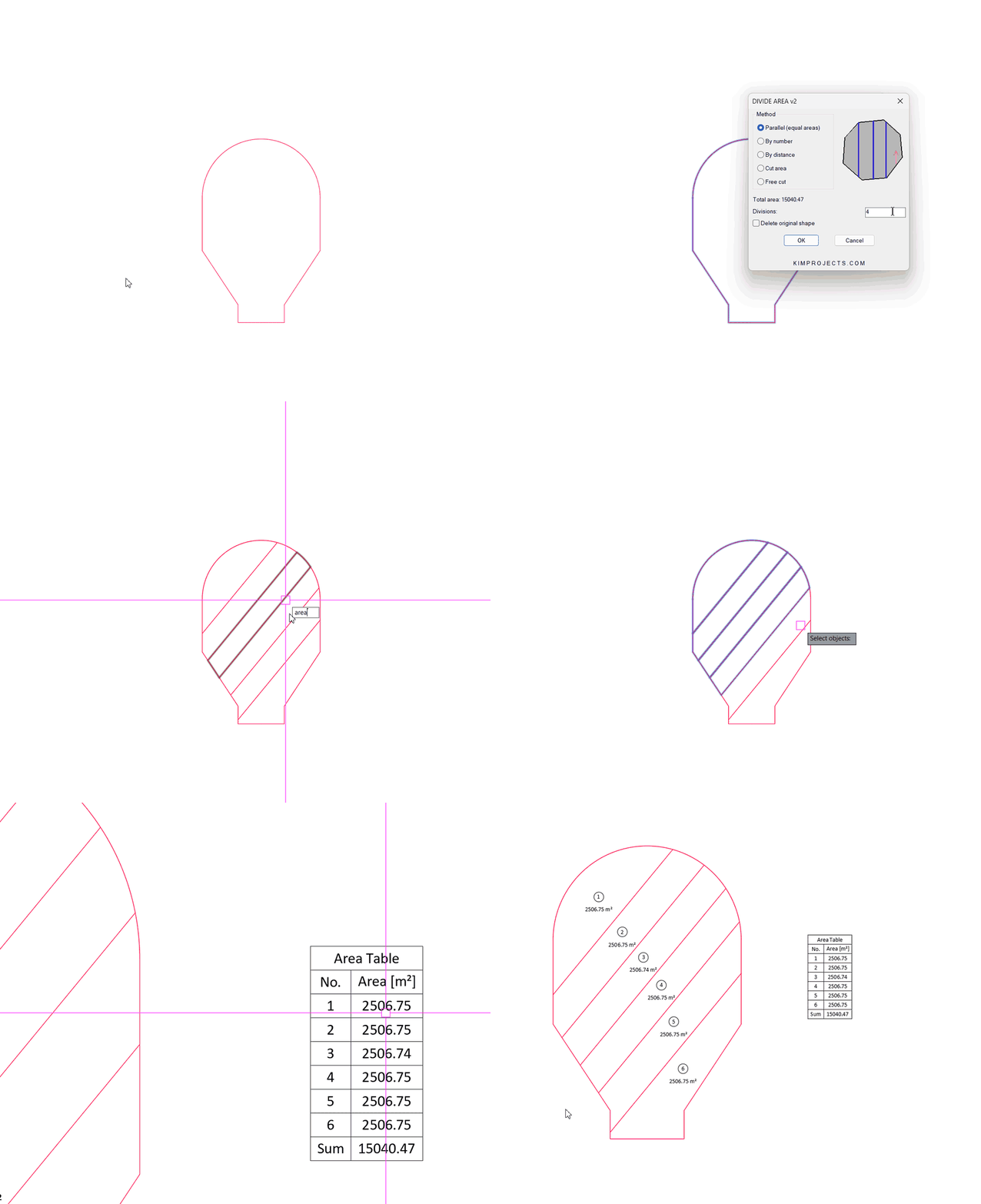
Area Measure is our add-in built for exactly this job. Select all the closed shapes at once — polylines, circles, ellipses, splines — and every shape gets a number and an area label at its centroid, and one native AutoCAD table lands where you point: title row, numbers, areas, and the total at the bottom.

Drawing units and output units are separate — draw in metres, report in dunam, hectares or acres. Labels take your current text style, annotative styles included, and a prefix/suffix can wrap every label (XYZ-1245.80 m²-room). The table is a real AutoCAD table: edit it, restyle it, export it to Excel with TABLEEXPORT.

See Area Measure — $21.90, buy once
Frequently asked questions
How do I see the area of a closed polyline in AutoCAD?
Select it and open the Properties palette (Ctrl+1), or use the AREA or LIST command, or Quick Measure. All of them report the area – but only for one object at a time, and only on screen: nothing is written into the drawing.
Can AutoCAD label areas automatically?
Partially. A FIELD can display one object’s area as text and it updates when the shape changes – but you insert and format each field by hand, shape by shape, and there is no numbering and no total. For many shapes at once you need a LISP routine or an add-in.
How do I get a table of areas with a total?
Natively you would use DATAEXTRACTION – a multi-step wizard that can pull object areas into a table. It works, but it is heavy for everyday use and formatting the result takes longer than the measuring. An add-in like Area Measure inserts a native, totalled AutoCAD table in one click, and TABLEEXPORT turns it into a CSV for Excel.
What about different units – drawing in metres, report in acres?
Natively the reported area is in raw drawing units, and converting is on you. Area Measure separates drawing units from output units: draw in metres and label in dunam, hectares, acres or any of eleven area units, at the precision you choose.
From the same workshop
Prefer free tools? Browse our free AutoCAD LISP collection — 30+ routines, all free, all tested on real projects.

How to Make a Voronoi Pattern in AutoCAD (3 Ways)